Morphing Particles on Scroll with Three.js and React
The Morphing Particles on Scroll
Let's take a deep look at my ParticleScroll component: what it does, why it works, and how a thousand glowing dots became a storytelling engine.
When I design web and application experiences, I look at it as creating a world. Worlds are dynamic. Worlds are sensory experiences. And one of the most important things to keep in mind when creating an environment that feels like a whole different world is that the way something moves is incredibly important as a means to pull the user into the experience.
Animation is usually where that realization hits hardest. Most UI animation is an afterthought tacked on before shipping or a boring reiteration of the same old thing. But every now and then someone builds something where the motion is the point, and the rest of the UI is just there to give it context.
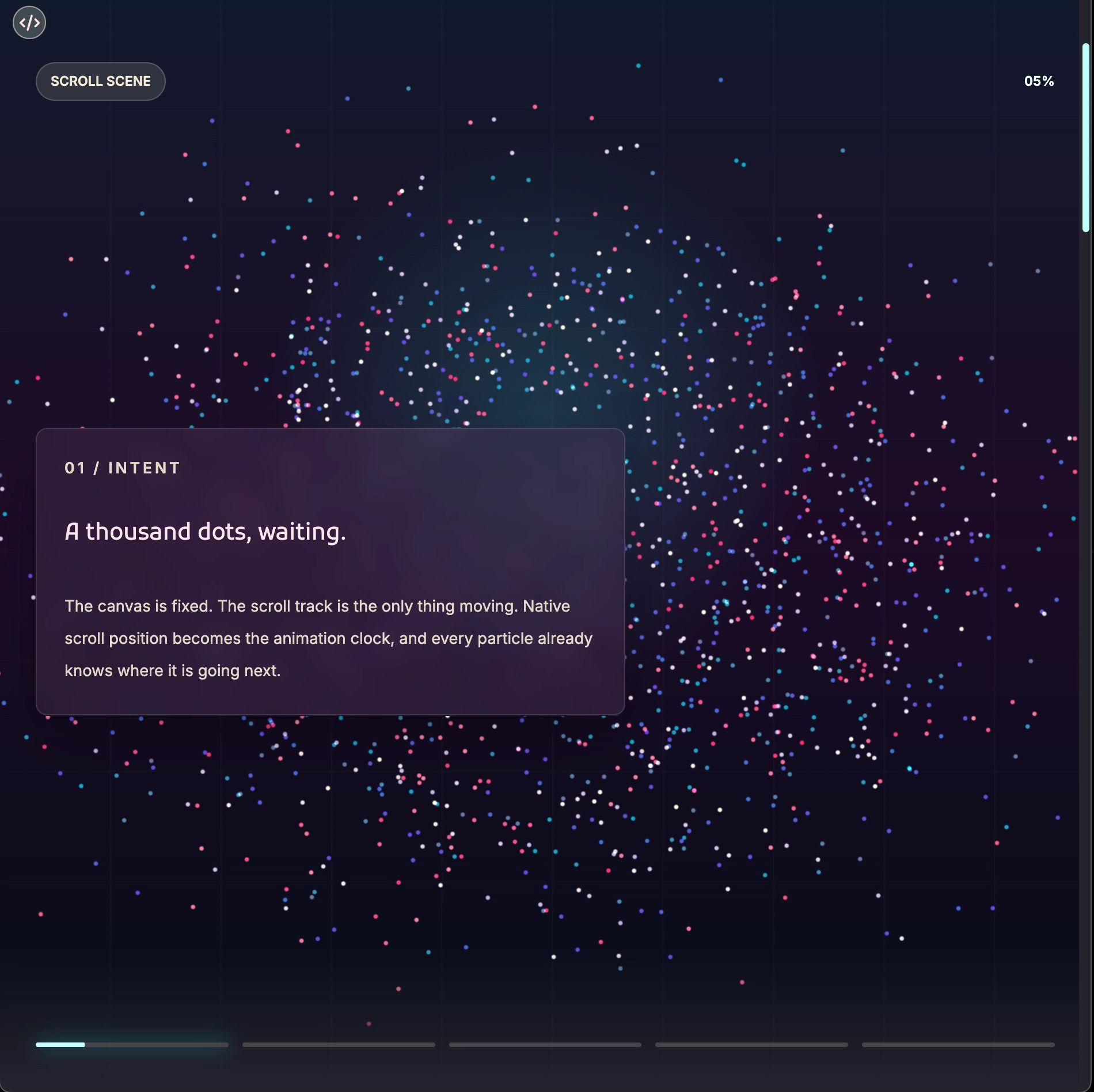
ParticleScroll is that kind of experience: a full-screen scroll storytelling component built on Three.js that ties a WebGL particle scene directly to the browser's native scroll position. As you move down the page, the particles morph. Content panels fade in and out. Progress indicators fill. The whole thing feels alive in a way that CSS transitions rarely do.
What becomes immediately apparent to a user is that you feel like you are moving through the content and interacting with it rather than just reading it.
Scroll-linked storytelling has been around long enough that most of us have experienced it done awkwardly, with weird, disconnected transitions and content popping in before the animation catches up. When it is done right, none of that registers. Users just scroll and the world shifts. They are taken on a mini-journey. This is the kind of experience I am after here.
The Core Idea (And Why It Is Elegant)
Let's get technical now. The architecture is built around a simple insight: scroll position is already a perfectly good timeline. You do not need a scroll animation library or a GSAP plugin or a custom RAF loop wired to some scroll velocity calculation. You need a normalized number from 0 to 1, and the browser hands you that number for free via the element's bounding rect.
ParticleScroll sets up an outer wrapper div that acts as the scroll track. It is an invisible rectangle that occupies real document height, defaulting to 500svh. The visible scene, the canvas, the content panels, the progress strip, all of it, lives inside a position: fixed viewport div. The scroll track moves; the viewport stays put. Native scroll behavior, browser history, momentum scrolling on iOS, all of it works exactly as expected because the component never touches any of it.
The progress calculation is about four lines:
const rect = scroller.getBoundingClientRect();
const scrollableDistance = scroller.offsetHeight - window.innerHeight;
targetProgressRef.current = clamp(-rect.top / scrollableDistance);
That float from 0 to 1 drives everything: which particle frame to interpolate toward, which content moment to show, how far to fill the progress indicators. The rest of the component is just reading from that single source of truth.
What this means in practice is that the experience responds to the user's nuanced scroll gestures. Scroll up a little and the particles drift back. Scroll down fast and they chase. Go slowly and you can watch individual points travel toward their new arrangement mid-morph. That immediacy comes from the operating system, not from me. Native scroll is tuned by engineers whose entire job is making that interaction feel exactly right. I just read the number they hand me and move some dots around.
The Particle Engine
The actual WebGL side of things is where it gets even more interesting. Each particle is a point in a Three.js BufferGeometry, stored as a flat Float32Array. The component precomputes a set of "frames," each of which is a snapshot of where every particle should sit for a given shape. During the animation loop, it interpolates between the current frame and the next one based on the scroll progress, writing new positions directly into the geometry buffer each tick.
This is a smart approach. There is no per-particle state object, no React re-renders driving the motion, no DOM updates happening 60 times a second. We just have typed array math and a single geometry.attributes.position.needsUpdate = true call to tell Three.js something changed. The GPU handles the rest.
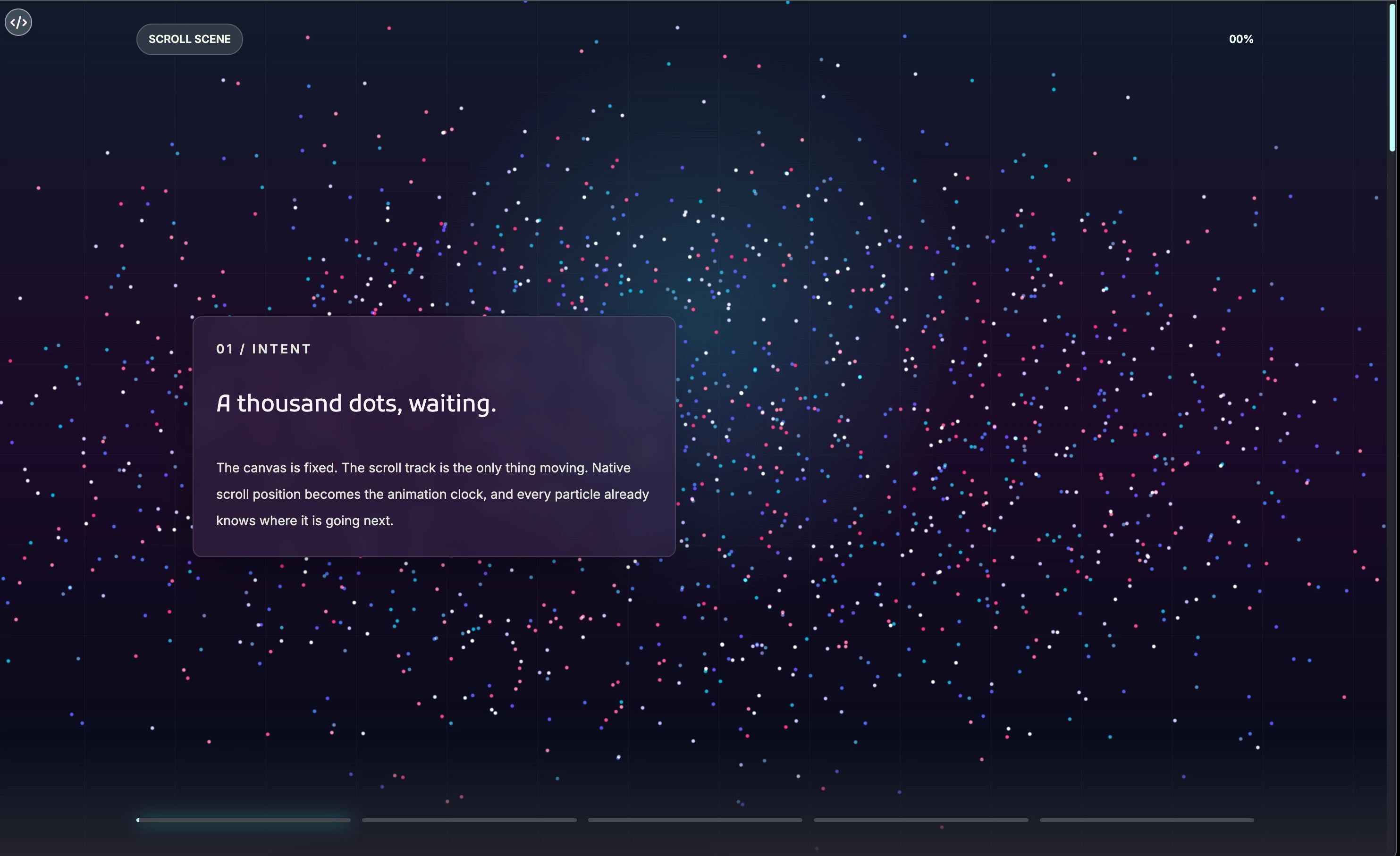
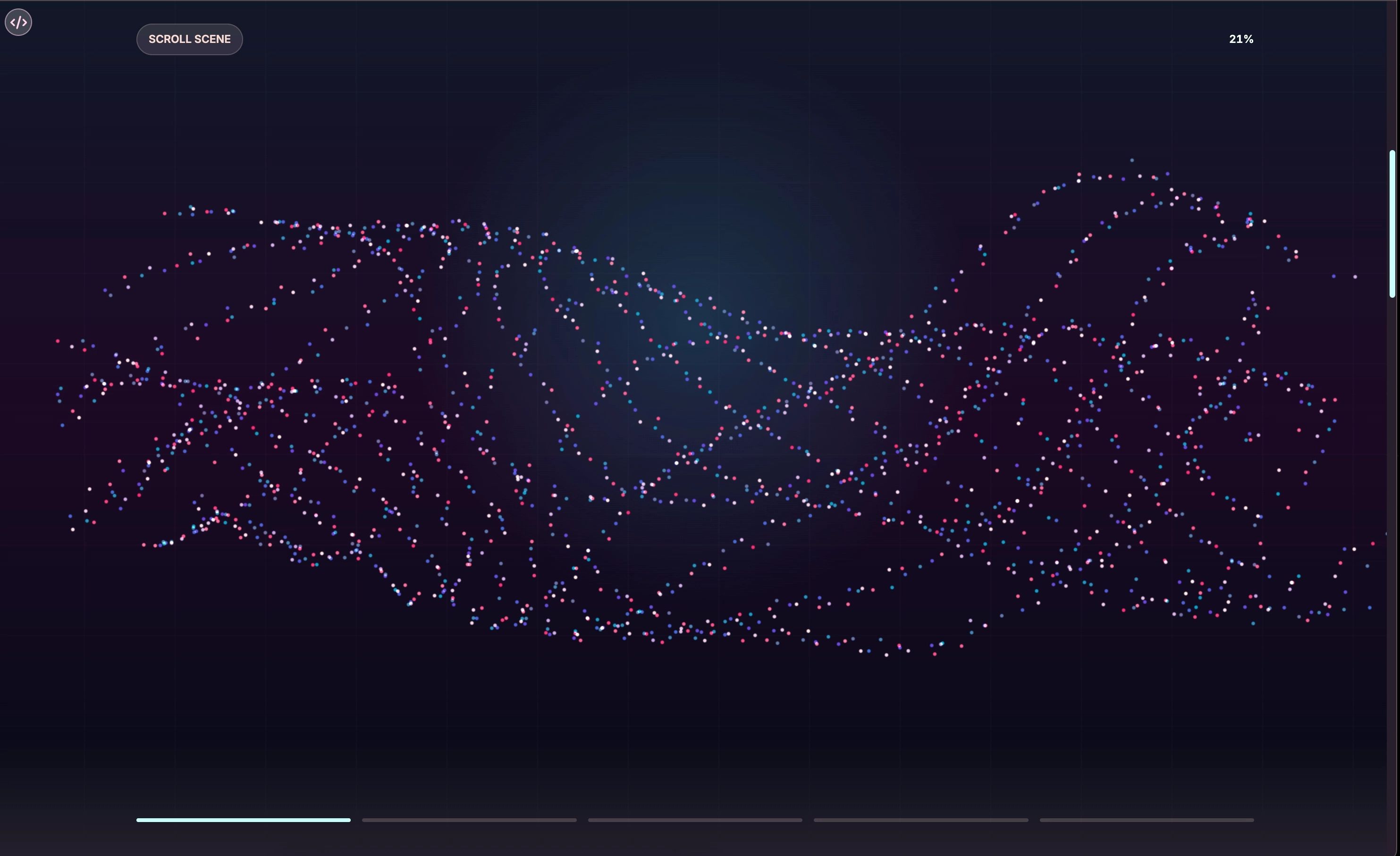
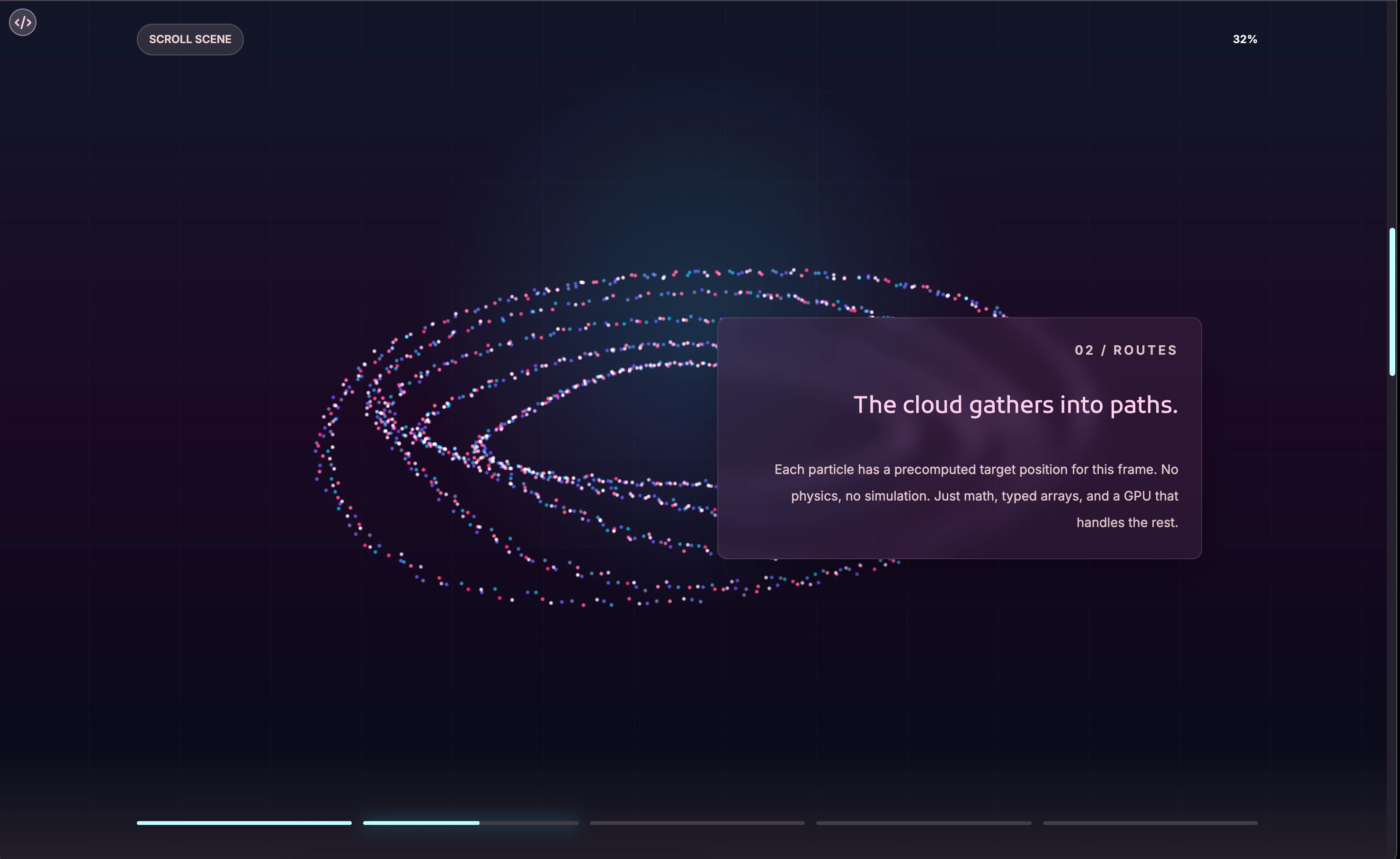
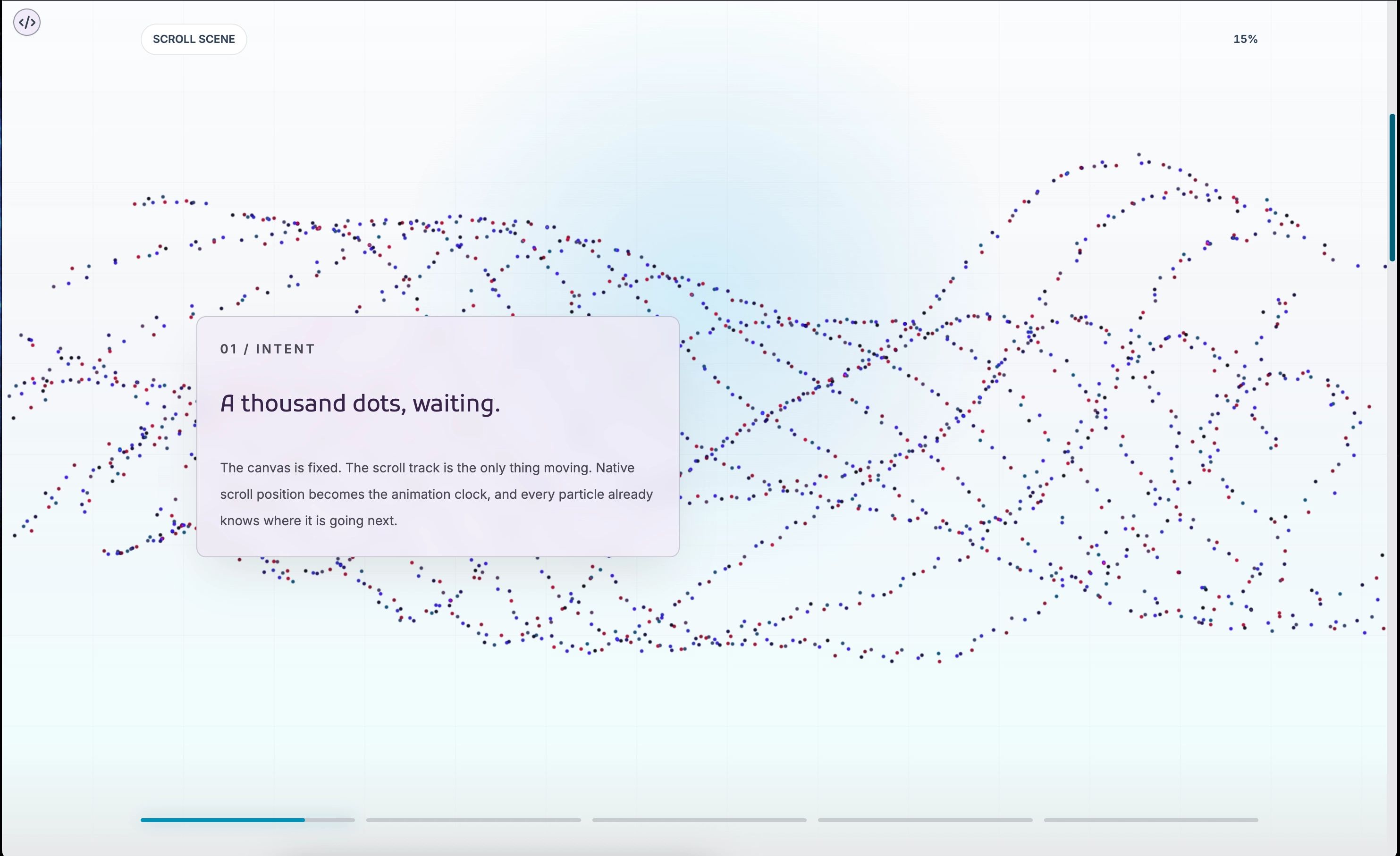
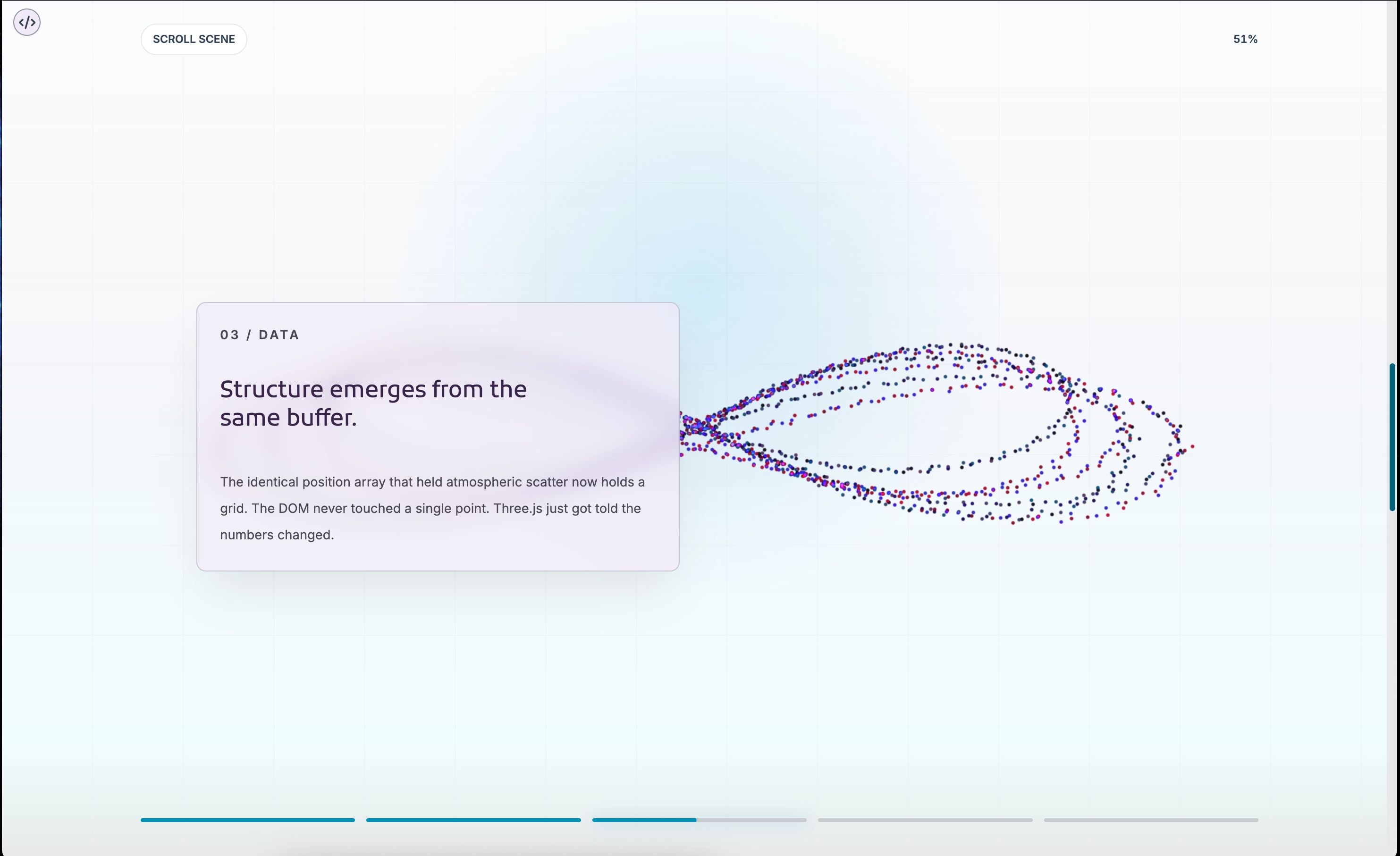
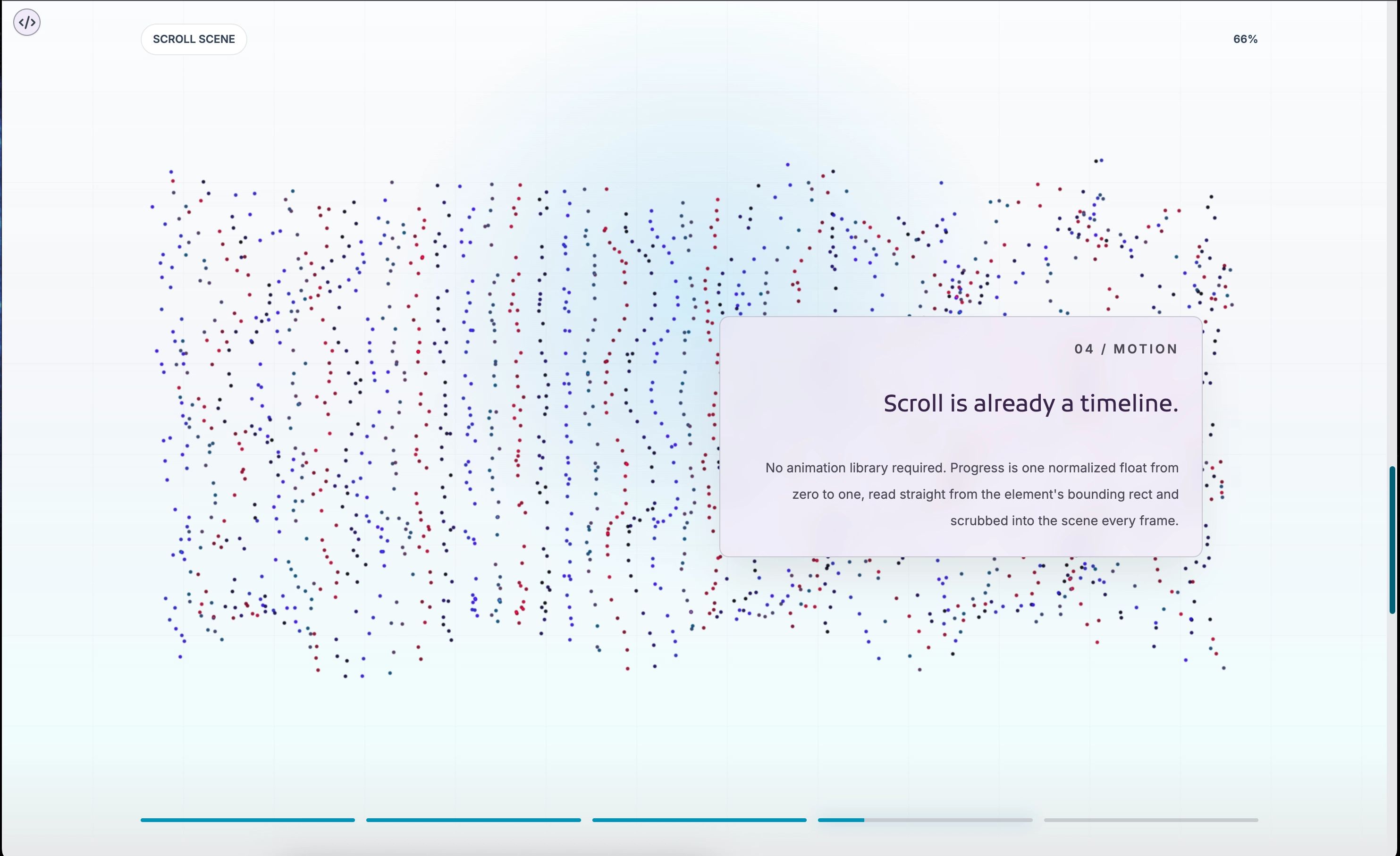
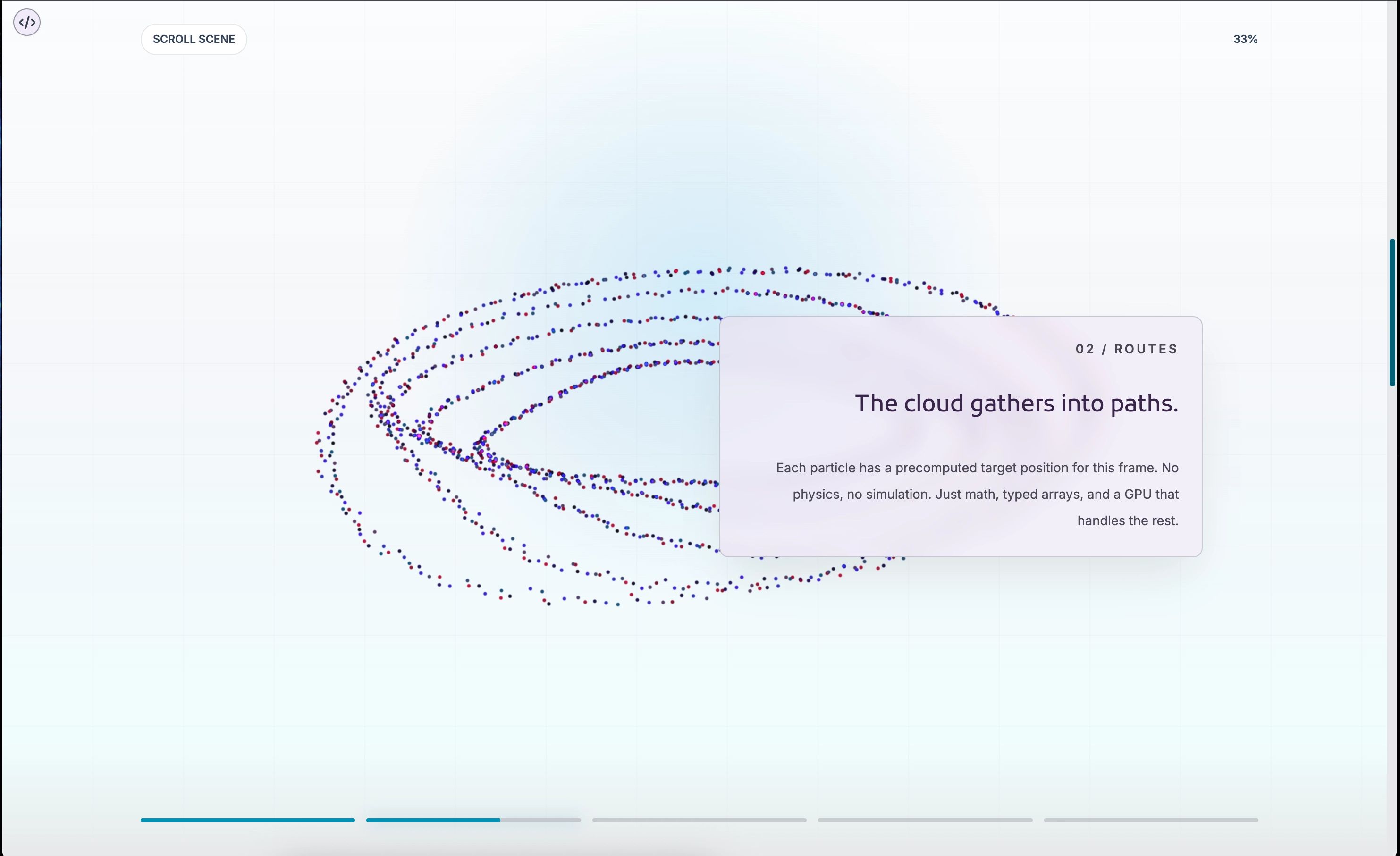
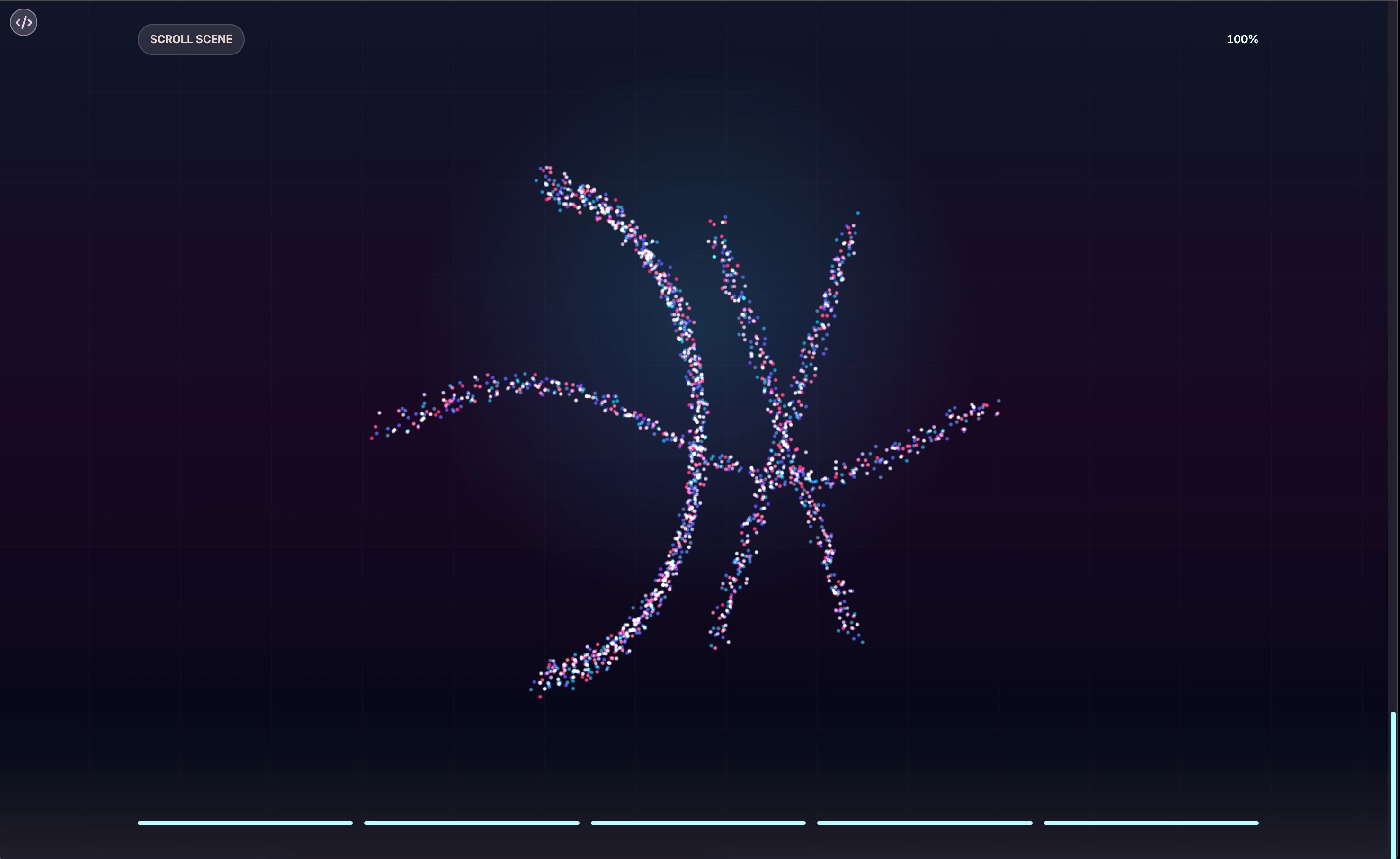
The default shape sequence moves through five forms: an ambient cloud, a route-like structure of branching paths, a data grid arrangement, an orbital ring pattern, and a final mark formation. Each one is a pure function that takes a ShapeContext (count, visible width, height, depth) and returns a Float32Array of positions. Adding a new shape is as simple as writing a new function and dropping it into the createParticleFrames array.
There is also a wobble system that kicks in when scrolling stops. The particles breathe a little, drifting in a sine-wave pattern with a seeded random offset per particle so they do not all pulse together. This keeps the scene alive during the moments when someone has stopped to read.
To me, this is one of the most important details of the experience, and it costs almost nothing computationally. A static particle field reads as a background element. It is boring, dead even. One that is quietly moving reads as something present, alive, and engaging. Most people will never consciously notice the wobble. They would definitely feel the stark difference without the movement though.
The User Experience
I want to talk about the user experience directly here, because the technical description can make it sound like the interesting part is the architecture. The interesting part is watching someone scroll through it for the first time. And sometimes, with the first impression, they even give you a little "Wow!". That's always fun!
The next thing that happens is they slow down. The particles are shifting and users want to see where things are going, so the scroll gets gentler. A content panel comes in and they read for a moment. Then they scroll again. The thing has a rhythm, and after about ten seconds users are just in it. They stop thinking about the page mechanics and start thinking about the content. They become more engaged, because the environment has pulled them into the experience.
I have also noticed that people scroll back up, not necessarily to reread something, but to watch the particles reverse. I know I do. When a user wants to experience an animation more than once or twice, you definitely got it right.
The wobble helps from the very first second too. The scene is already breathing on load, so before anyone touches the scroll wheel they are looking at something alive rather than something frozen and waiting. It sets the expectation: this page responds to you. Everything that follows keeps that promise.
The Developer Experience
Here is where most ambitious visual components drop the ball. The effect looks great in the demo, and then you go to actually use it and find yourself buried in configuration, fighting with z-indices, or discovering that it assumes a page structure you do not have, not this one.
The simplest possible usage is one prop:
<ParticleScroll moments={moments} />If you omit moments entirely, the component runs a built-in demo sequence so you can see what it does immediately, without writing a single data object. That is a nice touch. It means you can drop it into a page, see the full experience, and then start shaping it toward your actual content.
The moments array is the primary API surface. Each moment is a plain object with an id, a normalized range from 0 to 1, and then whatever content fields you need. The simplest moments use eyebrow, title, and body for a structured text panel. When you need something more custom, you pass a content prop with any React node and the default panel renderer steps aside.
const moments: ParticleScrollMoment[] = [
  {
    id: "intro",
    range: [0, 0.2],
    align: "left",
    eyebrow: "01 / Welcome",
    title: "Your story starts here.",
    body: "Particles set the mood while you say what matters.",
  },
  {
    id: "custom",
    range: [0.4, 0.65],
    content: (
      <div>
        <h2>Anything goes in here.</h2>
        <p>Custom layouts, images, interactive elements, all of it.</p>
      </div>
    ),
  },
];
The content layer and the particle layer are genuinely independent. You can customize the particles without touching the content, and vice versa. The two halves communicate only through the progress value, which neither of them owns.
ParticleScrollContent. The backdrop blur and border opacity are tuned to stay readable against both bright and dark particle arrangements.Light Mode, Dark Mode, and Everything In Between
Most WebGL components in the wild are dark mode components with a light mode toggle that vaguely works. ParticleScroll has full separate palettes for both themes, and they are not just color swaps. The dark palette leans into deep blues and purples with cyan highlights, radial glows, and high-contrast particle colors. The light palette shifts to slate and sky tones with softer backgrounds and more restrained particle colors that still read clearly on pale surfaces.
The palette system is genuinely granular. You get control over the background gradient, the grid overlay, the bottom fade, particle colors, the scene label, progress text, indicator track, indicator fill, and the active indicator glow. You can override one field or all of them:
<ParticleScroll
  darkPalette={{
    particleColors: ["#9f24d4", "#9a50ba", "#00949e", "#f8e0ff"],
  }}
  lightPalette={{
    particleColors: ["#7c3aed", "#be185d", "#0891b2", "#1f2937"],
    backgroundClassName: "bg-white",
  }}
/>
Because particle colors are assigned per-point using a seeded random index into the color array, changing four hex values produces a completely different visual character across the entire scene. Swap from cool blues to warm ambers and the same particle formation that felt like deep space now feels like firelight. The geometry does not change at all. The emotional register of the whole experience does. This is a facet of that web/app design ASMR that I always go for.
From a user standpoint, this matters in a subtle way. A WebGL component that ignores the surrounding page's theme is a small wrong note, nothing anyone would necessarily point to, but something they feel. When the particles belong to the same visual world as the rest of the UI, the experience reads as coherent rather than assembled. That coherence is what lets people actually sink in instead of sitting slightly outside the experience wondering why something feels off.
The Progress Strip
At the bottom of the viewport sits a row of thin progress bars, one per moment, that fill as scroll moves through each moment's range. The active one gets a soft glow. It is a small affordance, but it does something important: it tells the user that there is more to see, and it tells them roughly where they are in the story. Without it, a scroll-linked experience can feel like a room with no visible exits.
There is a particular kind of low-grade anxiety on long-scrolling pages when you cannot see how much is left. You either rush through or you disengage, because you have no sense of the commitment involved. The progress strip solves this without drawing attention to itself. Users can see the shape of what they are moving through, and that knowledge changes how they scroll. They slow down. They commit. I have watched users (including myself) reach the last segment and deliberately ease up, making the final bit last. The strip told them there was not much left and they decided to take their time with it.
The number of segments is automatic. Pass five moments, get five bars. Pass two, get two. You can hide the strip entirely, hide just the percentage readout, or restyle the container with progressClassName if you want different spacing or padding. The component makes a reasonable default choice and then gets out of your way.
activeIndicatorClassName. The percentage label is visible in the top-right corner.Shapes As Pure Functions
This is the part I keep coming back to, because it is a small architectural decision that has a big creative payoff. Each particle shape is a function. It takes a context object describing the visible scene dimensions and particle count, and it returns a Float32Array of positions. That is the entire contract.
The built-in shapes cover an ambient cloud, branching routes, a data grid, an orbital ring, and a mark formation. But because each shape is just a function, extending the system requires no special knowledge of the internals. You write your math, you drop the function into the createParticleFrames array, and it becomes part of the sequence.
Because particles are interpolated between frames, not teleported, the shapes will emerge smoothly from whatever precedes it. You could build a sequence that moves from a circle to a logo mark to a data grid to a heartbeat line, and each transition would be a fluid morph. The interpolation system does not know or care what the shapes represent. It just moves points toward their targets at a rate controlled by the TARGET_EASE constant (currently 0.08, which gives a nice lag that makes fast scrolling feel organic).
For users this is the part that tends to produce a small involuntary pause. When a thousand points reorganize from scattered chaos into a precise grid, the transformation is happening to every particle simultaneously, each one on its own path, and the overall effect is somewhere between a flock and a machine. Users stop scrolling to watch it complete. Then they scroll back to watch it reverse. That is the most reliable signal I have found that a visual component is doing its job.
Custom Rendering When You Need Full Control
The default content system handles the most common cases well, but sometimes you want to position and render content in a way that the default panel does not support. Maybe you need multiple panels simultaneously, or a full-bleed layout that ignores the built-in constraints. The renderMoment prop handles that:
<ParticleScroll
  moments={moments}
  renderMoment={(moment, context) => (
    <div key={moment.id} style={context.style}>
      {moment.content}
    </div>
  )}
/>
The context object gives you progress (the full scene progress), opacity (the computed opacity for that moment), and style (the default opacity, transform, and pointer-events object you can spread or ignore). You own the output. The component just tells you what state things are in.
That is good API design. The component does not try to predict every layout you might want. It exposes the data and steps back.
Performance Considerations
A WebGL canvas running a scroll-linked animation loop is not free. There are real tradeoffs here, and the component is honest about them. The defaults sit at 1,900 particles, a point size of 9, and opacity of 0.92. These are tuned to look rich without destroying mobile GPUs. Push to 4,000 particles and you will start to feel it on mid-range phones.
Here are a few things the component does to stay reasonable. The pixel ratio is capped at 1.75, so retina displays do not render at 3x or 4x. The entire scene visibility is gated on an isSceneActive check based on whether the scroll track is in view, so if you embed the component mid-page, it stops animating when the user scrolls past it. The scene recomputes its shape frames on resize so particles always fill the visible area correctly. And the wobble system is throttled with a delay and a fade so it is not constantly running at full strength.
For lower-end targets, you can drop to 1,200 particles and a point size of 6 and it still looks good. The visual character shifts from "rich and immersive" to "light and atmospheric," which is a legitimate aesthetic choice, not a compromise. Users on lower-end devices still get a living, scroll-responsive scene. They just get a lighter version of one, and a lighter version of this is still considerably more engaging than a static page.
Scroll Length and Story Pacing
One of the controls that matters more than it might seem at first glance is scrollLengthClassName. The default is min-h-[500svh], which gives you 500 viewport heights of scroll to work with. That sounds like a lot, and on a fast scroll it is. But most users do not fast-scroll through intentional storytelling experiences. They scroll, pause, read, scroll again.
Longer scroll lengths slow the pacing. The same content moment that spans range: [0.2, 0.4] takes twice as long to appear and disappear on a 700svh track as it does on a 350svh one. This means you can tune the rhythm of the story independently from the content itself, which is a nice separation. Want readers to linger on a transition? Stretch the track. Want a snappy, punchy experience? Compress it.
The moment ranges themselves do the same work at a finer grain. Gaps between moment ranges are breathing room where particles are visible but no content panel is active. Use those gaps intentionally and they become pauses in the narrative. Close them up and the story feels continuous.
For users, pacing is the invisible hand shaping how a story feels. The same five moments in 200svh feel like a trailer: punchy, quick, a little breathless. Those same five moments in 700svh feel like a chapter. You have time to sit with the particles, notice the formations, read the copy twice if you want. Neither is wrong. They are just different experiences, and the ability to dial between them through a single prop, without touching content or particles, is one of those things that seems small until you spend an afternoon getting the rhythm exactly right.
Quick Reference: The Props That Matter Most
For anyone skimming toward the end looking for the practical summary, here is the short version of the controls worth knowing:
moments drives the story. Each entry in the array is a content panel tied to a scroll range. This is where you spend most of your time. scrollLengthClassName sets the total pacing. particleCount, pointSize, and particleOpacity tune the particle density and appearance. darkPalette and lightPalette let you override any part of the color system for either theme. showProgress and showProgressText control the chrome at the bottom and top. renderMoment gives you full control when the default panel does not fit. And particleWobble lets you keep particles animating always, only when idle, or not at all.
Everything else is either a quality-of-life prop for edge cases or an internal constant you can adjust in the source if you need to go deeper, which, if you have read this far, you probably will.