
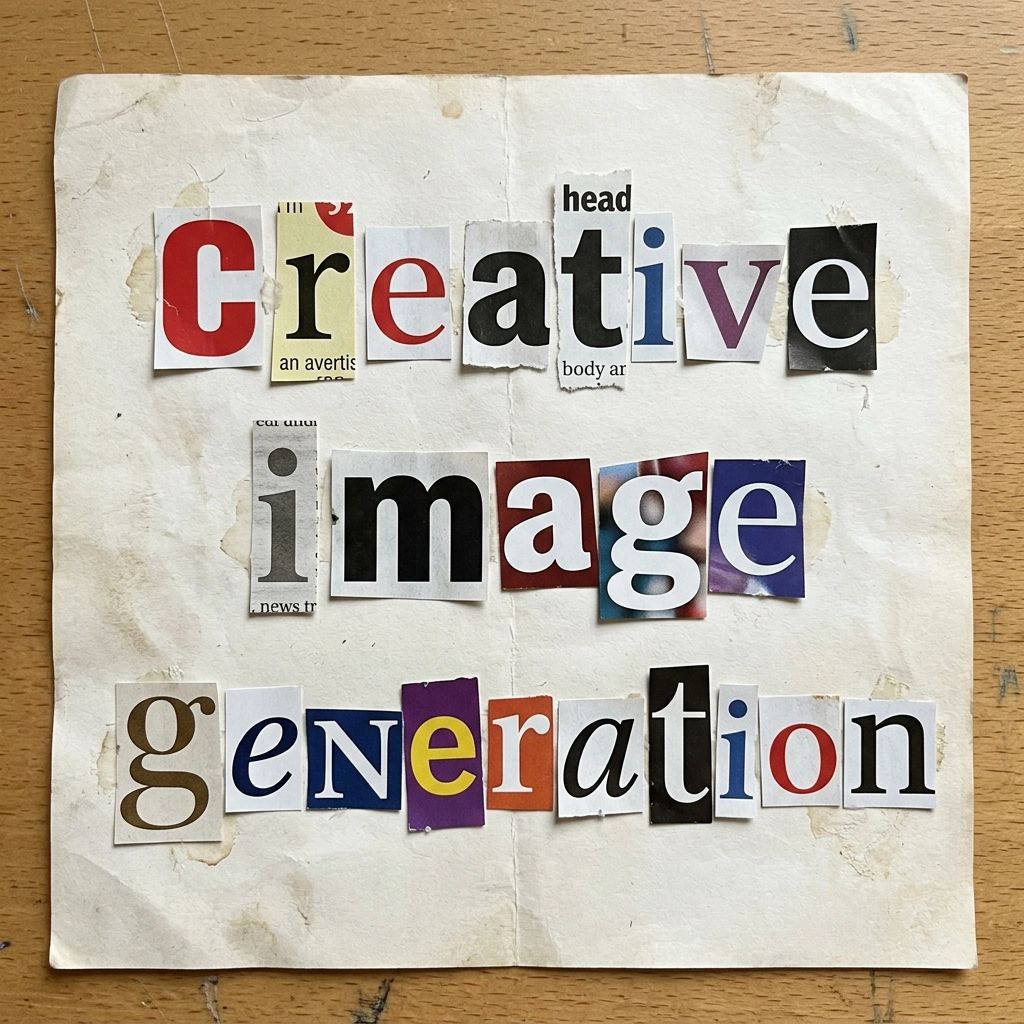
The Illustrator Studio: Art Direction Built Into AI Image Generation
A short tour of the Illustrator Studio, an image-generation workspace that builds an expert-level prompt for you from three layers: a curated visual style, an optional composition mode, and your own idea in plain language. These panels cover how the prompt architecture works, why the curated styles change the output, how the studio handles the things AI image tools usually get wrong, and what it takes to turn raw model capability into a creative tool people can actually use.
The Premise
Most AI image tools start you with an empty prompt box that quietly assumes you already know how to describe an image the way a model needs to hear it.
The Illustrator Studio puts that skill in the tool rather than the user, so getting the right image in the right style is easy even if you have never written a prompt in your life.
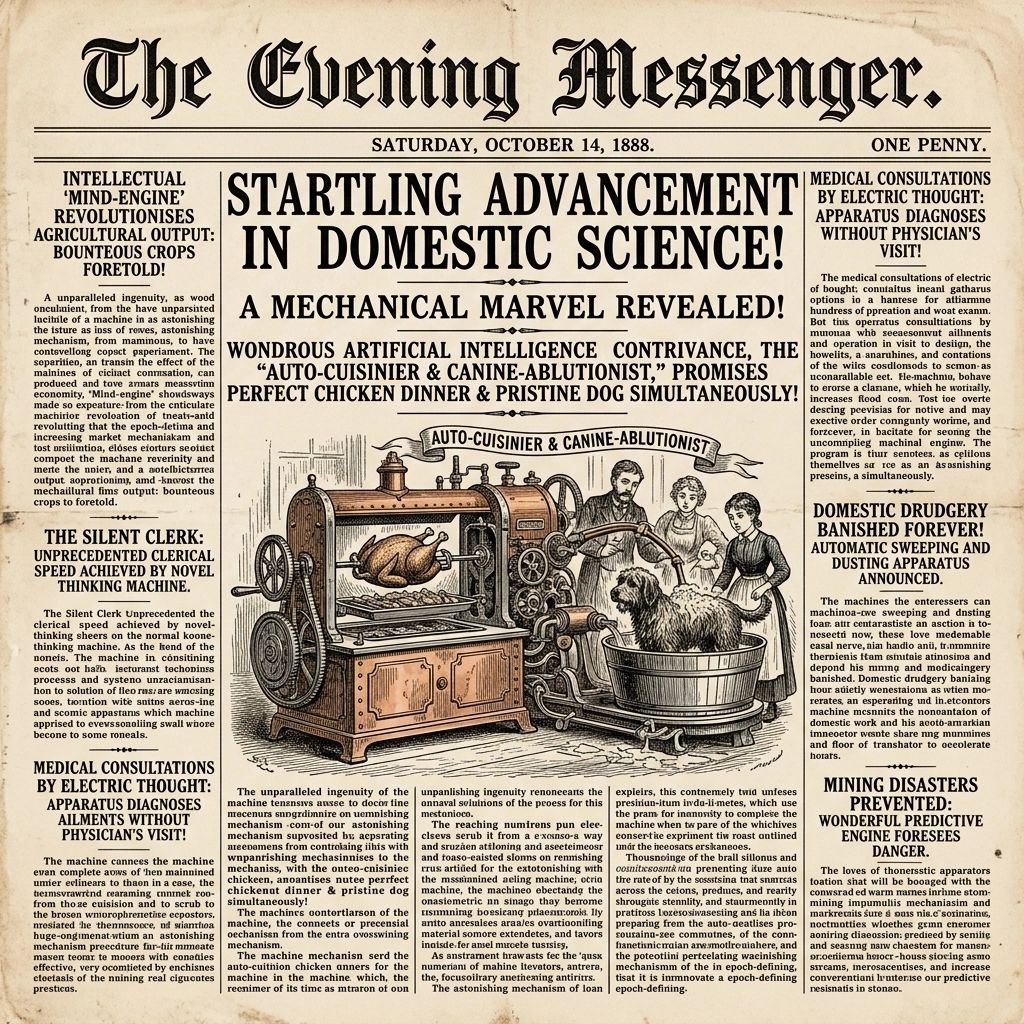
The Prompt Architecture
Each request is built from three layers: the visual style you select, an optional composition mode, and your own subject written in plain language.
The system assembles the rest, turning an ordinary sentence into an expert-level prompt before it ever reaches the model. You bring the idea, and the studio brings the craft.
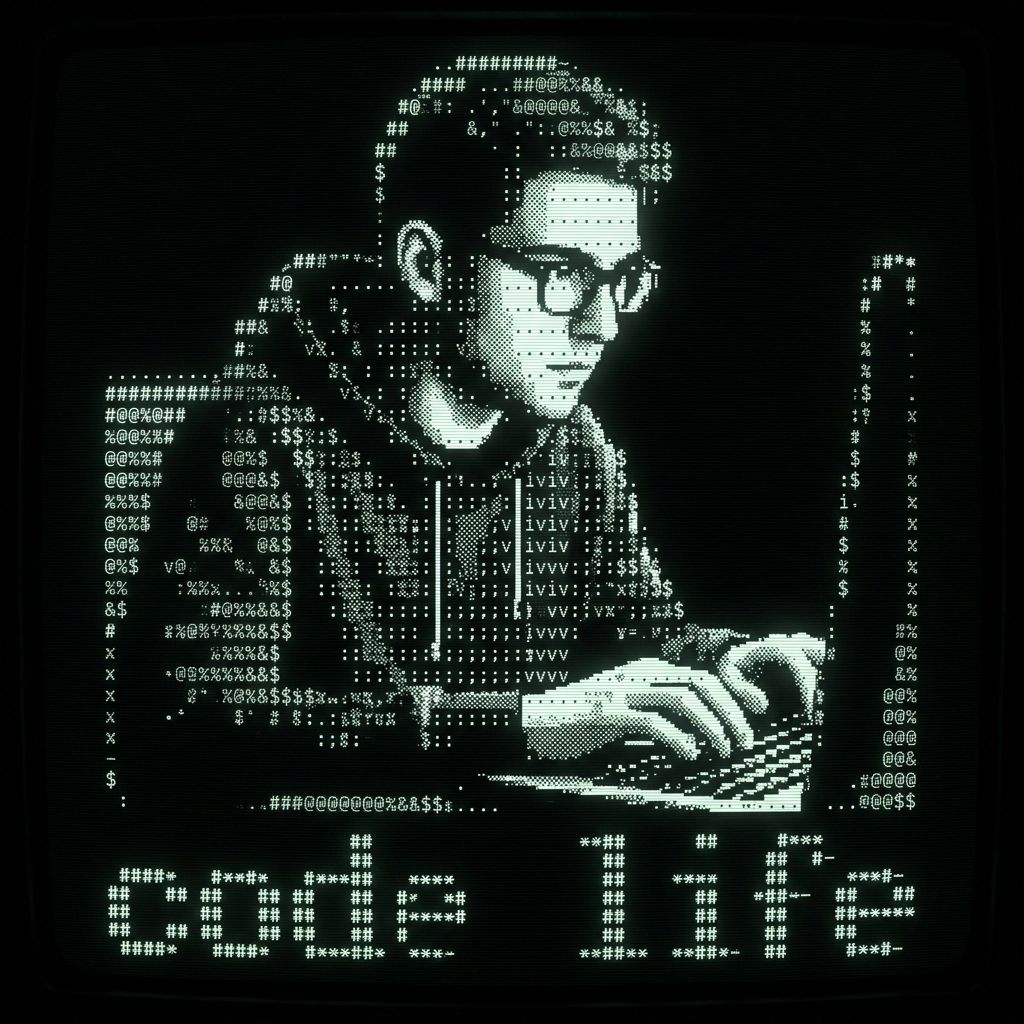
Curated Styles as Creative Systems
A style is a reusable creative system that carries its own lighting, material, mood, typography, and layout guidance. Choosing one is closer to hiring an art director with a point of view than to flipping a filter.
The library runs well over a hundred styles, from fine-art movements and historic photographic processes to typographic treatments and technical looks. Each one steers the result away from the default AI sameness.
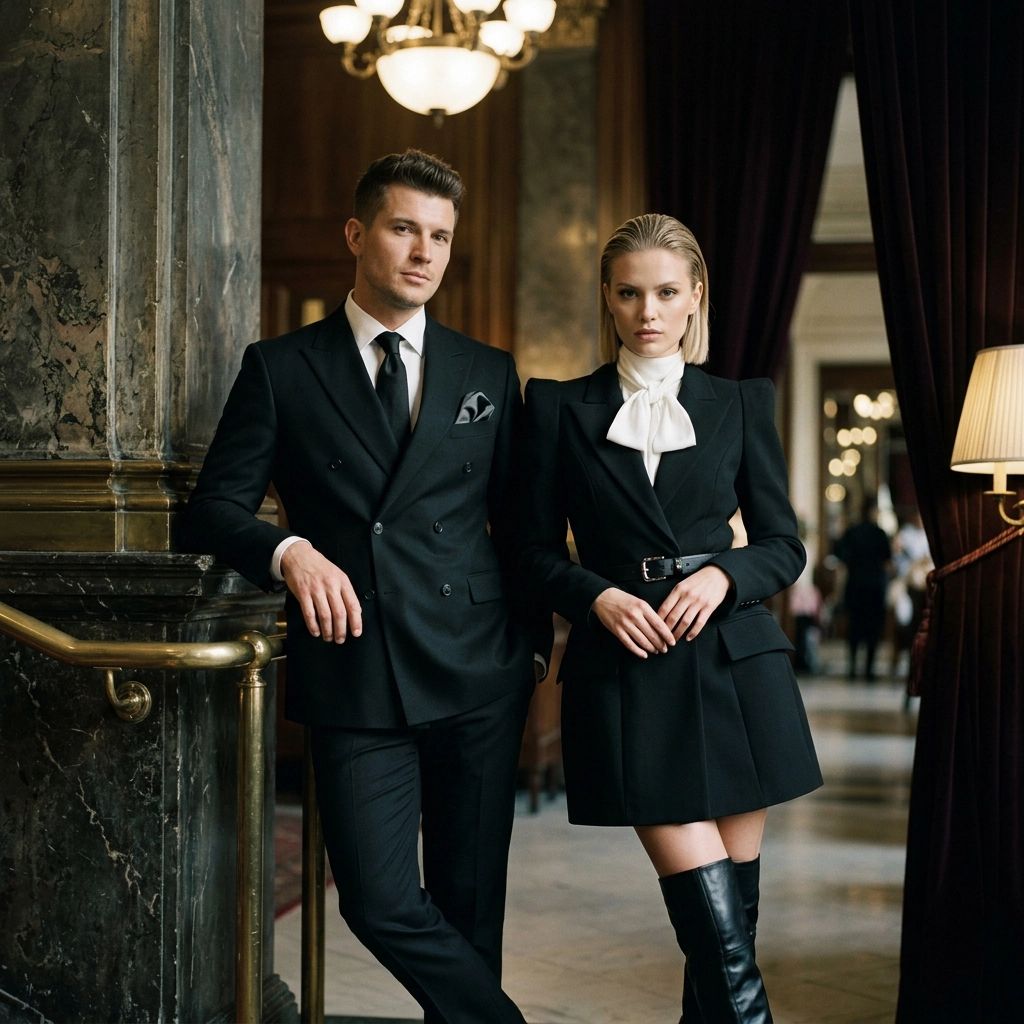
Composition Modes
The optional second layer is structure. A composition mode decides how the idea is arranged on the canvas, which is usually the hardest part for a non-designer to describe.
Modes include centered isolation, educational diagram, exploded assembly, cross-section cutaway, comparative layout, sequential panels, environmental scene, and technical schematic. You describe what the thing is, and the mode handles how it sits in the frame.
Typography That Renders Correctly
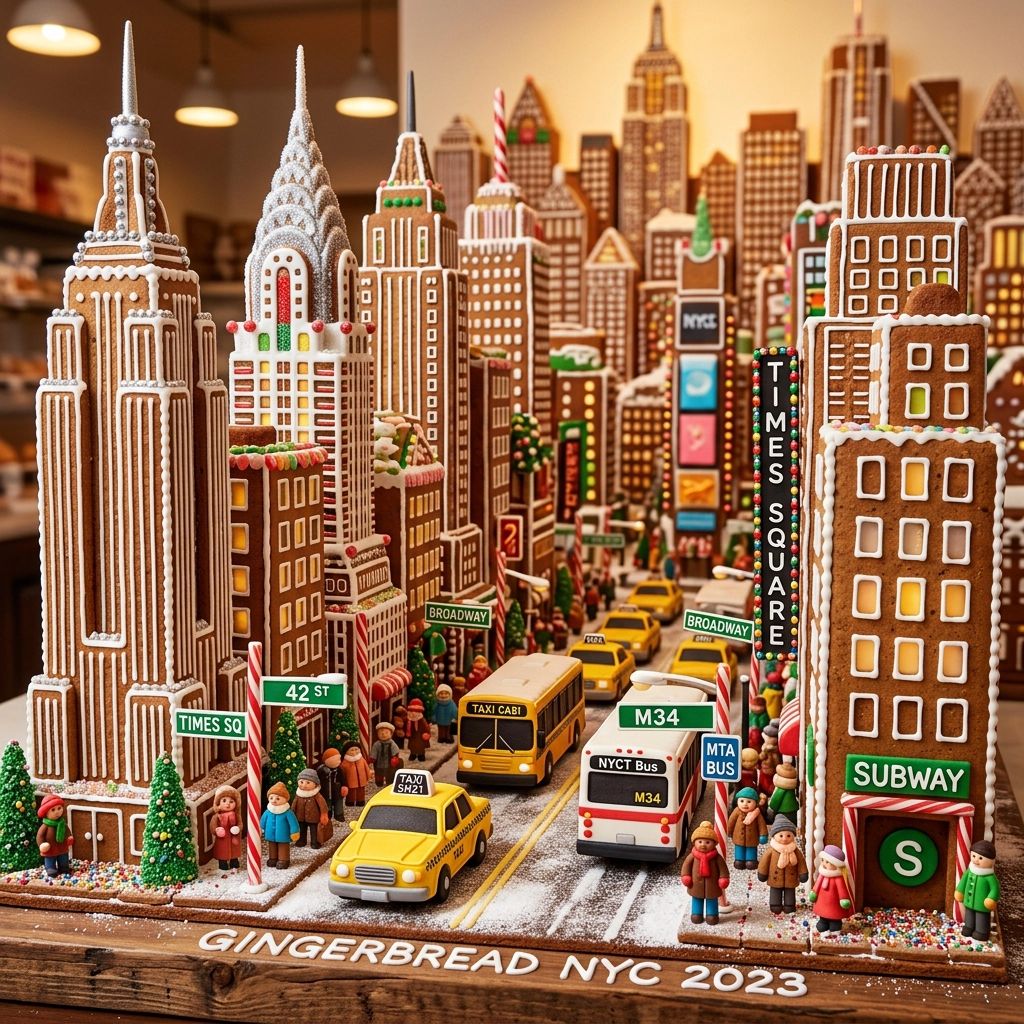
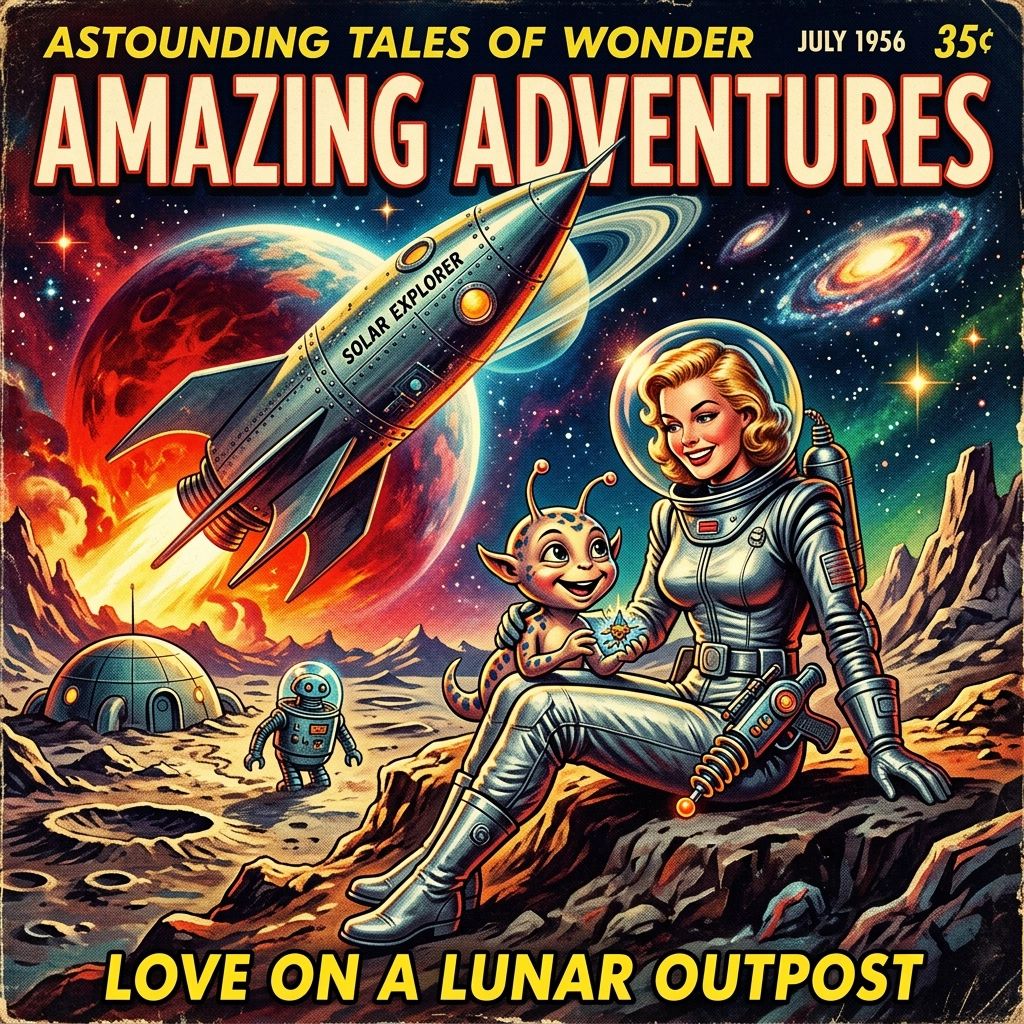
Rendered text is the thing AI image tools are notorious for getting wrong, with letters that warp, misspell, and collapse into nonsense.
When you select a typography style, the prompt field switches to exact text input, so the model is given the precise words to render rather than left to guess at spelling, capitalization, and spacing.
Multiple Models, One Workflow
Different image models are good at different things, so the studio supports more than one provider and keeps each model's settings organized inside a single consistent interface.
You pick a model, adjust the controls that belong to it, and generate, all in the same place. The complexity of juggling providers stays under the surface where it belongs.
How It Works
The whole experience comes down to four steps, and only one of them asks you to write anything. Choose the look (a visual style), then choose the structure (an optional composition mode).
Write the content in plain language, or enter the exact words for a typography style. Then pick a model, generate, compare results, and download the strongest version.

Production-Minded Output
A creative tool is only useful if the output can leave the tool. Generated images can be inspected, expanded, opened at full resolution, and downloaded immediately.
The goal was always artwork you can move directly into portfolio or presentation work, not a gallery you can only look at.
Responsible Generation
Exposing an image model on a public page is a real risk if you do it carelessly, both for abuse and for runaway cost.
The studio guards the endpoint with reCAPTCHA verification before any model call is made, so the tool can stay open for anyone to try while staying safe to expose.
Built Into Lumi Forge
The Illustrator Studio is part of Lumi Forge, where books, articles, newsletters, courses, and learning resources are turned into interactive experiences.
It is built for book visuals, resource artwork, article graphics, and companion learning materials, all created with clear art direction instead of prompt-engineering guesswork.

What This Project Shows
The model call is the easy part. The work is everything around it: the product architecture that turns three layers into one expert prompt, the prompt-system design behind the styles and modes, the responsive UI engineering, the multi-provider integration, and the secure server handling that protects a public endpoint.
Together those pieces turn raw AI capability into a creative tool a real person can pick up and use well on the first try.
What Makes This Different
The difference comes from the combination. Curated art direction gives the output a point of view, composition modes handle what most people cannot describe, plain-language input removes the prompt-writing barrier, exact text input fixes the typography problem, and multiple models let you match the tool to the look.
That is the whole idea behind The Illustrator Studio: lower the barrier without lowering the ceiling.